 Vamsi
Vamsi 
Getting started with Kubernetes on a vanilla linux installation can be overwhelming considering the number of steps and the repetitions involved in setting up master and worker nodes. In this post I intend to explain how to set up Minikube with Hyper-V on your windows 10 laptop so you can play around with it easily.
Minikube

Source: Kubernetes
Minikube is a tool that makes it easy to run Kubernetes locally. Minikube runs a single-node Kubernetes cluster inside a VM on your laptop for users looking to try out Kubernetes.
Hyper-V

Source: Wikipedia
A component of Windows Server Microsoft Hyper-V, codenamed Viridian and formerly known as Windows Server Virtualization, is a native hypervisor. It can create virtual machines on x86–64 systems running Windows.
Pre-requisites:
- Hyper-V : How to get Hyper-V Installed
- Chocolatey: How to install Chocolatey Package Manager
Step 1: Open Windows Power Shell with Admin Privileges ( Right Click -> Run as Administrator )
Step 2: Install the package minikube using chocolatey package manager
##Minikube has a kubernetes-cli dependency which will get auto-installed along with Minikube ##

choco install minikube
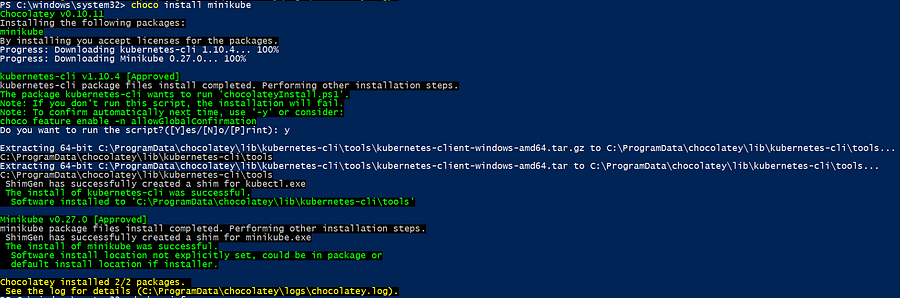
Step 4: Post Successful installation verify if your Powershell prints an output like this
Step 5: Install the Kubernetes Command Line Interface that will help you access any kubernetes cluster ( Local or otherwise )
choco install kubernetes-cli
Step 6: Change settings of Hyper-V to work around a bug of minikube.
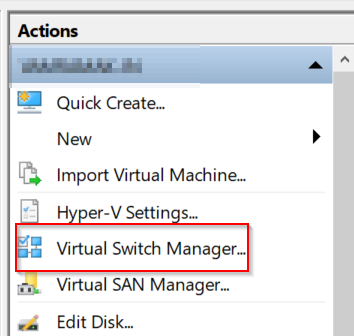
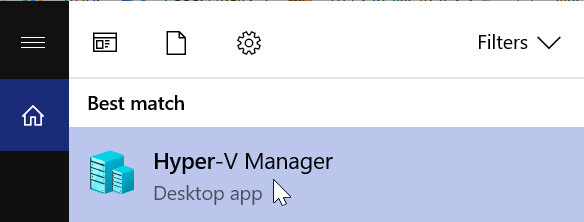
Step 7: Open Hyper-V and go to Virtual Switch
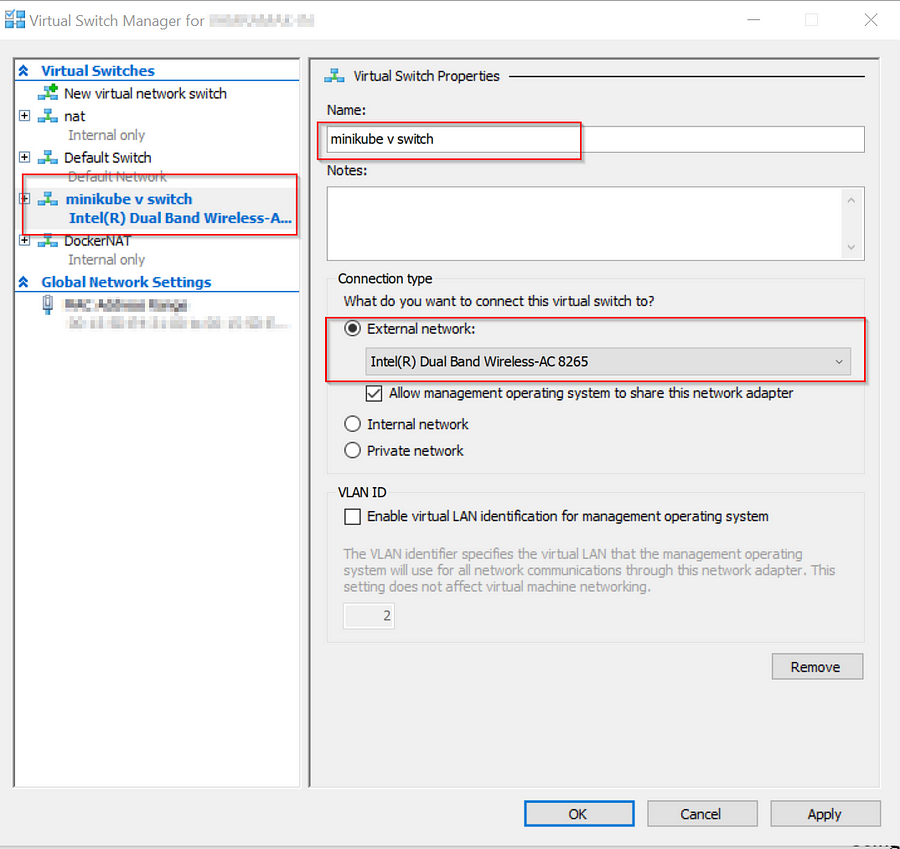
Step 8: Click on New virtual network switch on the right hand side, select External for the network type, and then click the Create Virtual Switchbutton.
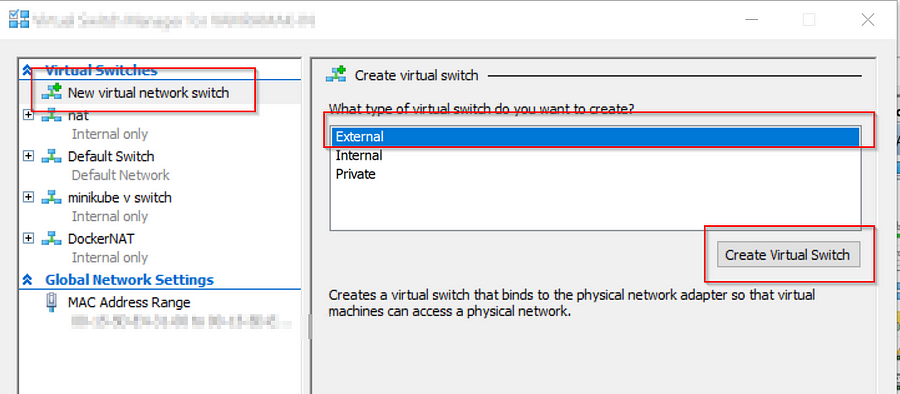
Step 9: Name the network Minikube v switch and then set it as an external network
Step 10: Run the following command in command prompt with admin privileges to start the minikube VM and configure it to be used with kubectl
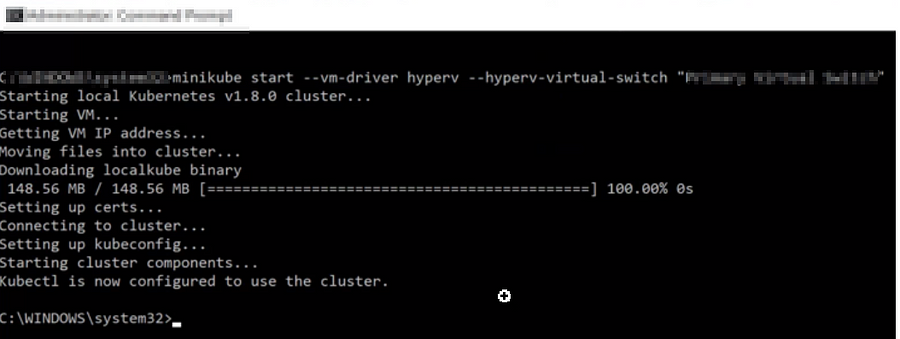
minikube start --vm-driver hyperv --hyperv-virtual-switch "minikube v switch"
Step 11: Open a new command window, this time as a normal user and run the following command
kubectl get pods -n kube-system
You should see the following result

Step 12: If you are a kubernetes dashboard person, you can open that up by typing in the following command in the command line window with the same privileges that you started minikube
minikube dashboard
 Do yourself a favour , install WSL